
Launching Regular AI Visibility Tracking in Marketing Miner
Do you have control over how AI assistants talk about your brand? We’ve just launched regular tracking for your brand and competitors within Marketing Miner’s AI Visibility add-on. In addition to one-off analyses, you can now continuously monitor your performance in responses from AI models like ChatGPT, Gemini, Perplexity, AI Overviews, and AI Mode.
Detailed analysis of your tracked prompts will show exactly where and how often your brand and competitors appear in AI answers. Through clear visualizations, you can monitor the evolution of key indicators such as AI Visibility, Average Position, and Share of Voice.
A major new feature is Sentiment Analysis of mentions. It’s no longer enough to just know if AI models mention you; the key is how they talk about you. With Marketing Miner, you can discover whether AI perceives your brand positively, neutrally, or negatively, gaining a deep insight into the impression your brand leaves in its responses.
What data does the tool provide?
Let’s take a look at the user interface and the specific insights you can extract from the tracked data.
Section 1: Overview
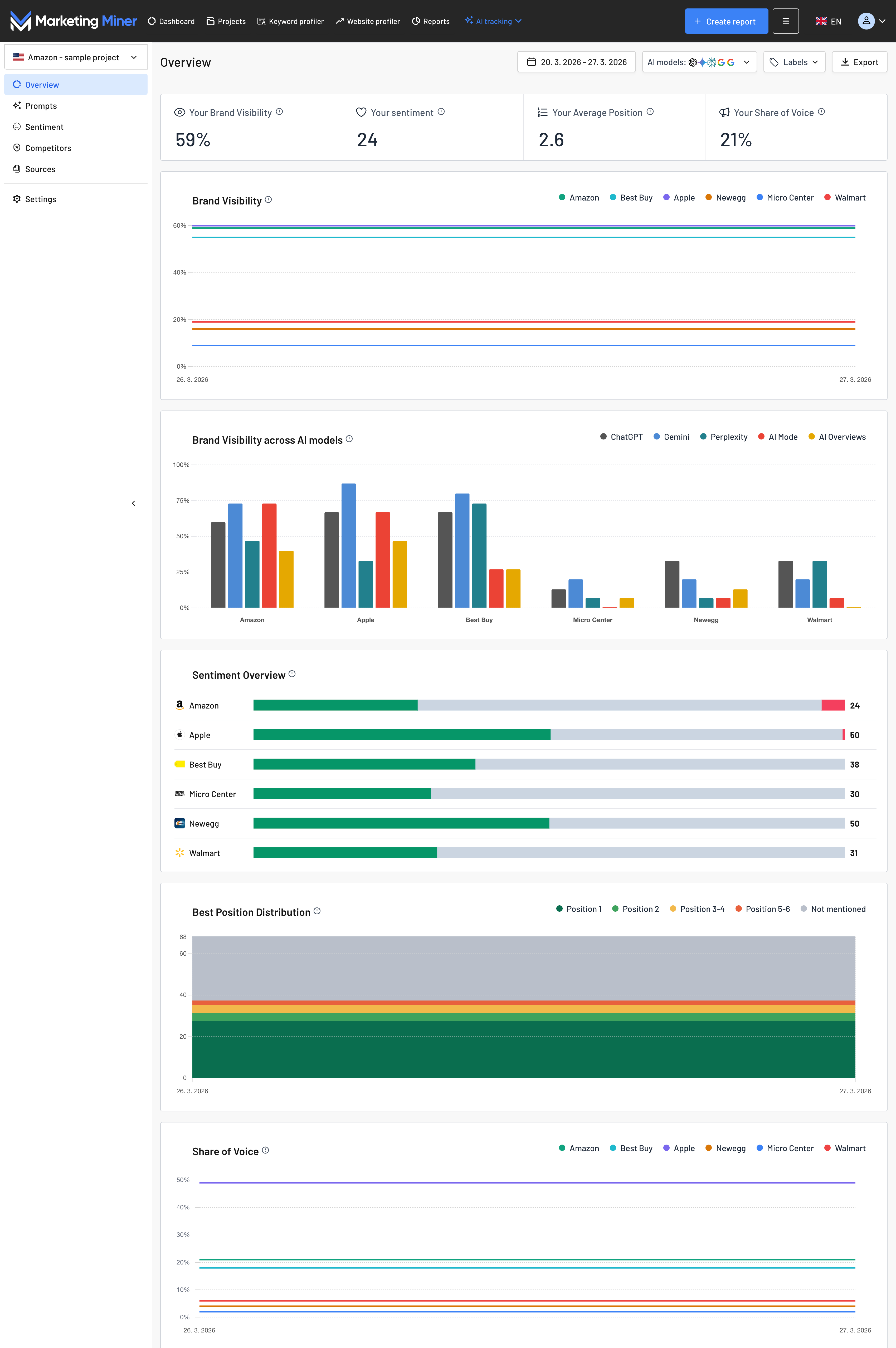
The first section serves as your main dashboard, providing an immediate look at how your brand stacks up against the competition across different AI models.
Key Metrics:
- Brand Visibility - the percentage of prompts (queries) where your brand was mentioned out of the total number of tracked queries.
- Sentiment - measures how positively or negatively your brand is discussed in AI answers. The value ranges from -100 (very negative) through 0 (neutral) to 100 (very positive).
- Average Position - indicates where your brand typically appears within the response. If an AI mentions you multiple times, we only count your best (highest) position for these statistics.
- Share of Voice - your percentage share of mentions compared to the total number of mentions for all tracked brands.
Visualizing Trends Over Time:
- Brand Visibility - track how your visibility evolves compared to selected competitors.
- Visibility Across AI Models - the share of prompts mentioning your brand within each specific AI model.
- Sentiment Overview - evaluations of how AI assistants present your brand (on the -100 to 100 scale).
- Top Positions Distribution - a graphical representation of how often you secure the top spots.
- Share of Voice - an overview of how your market share within AI responses changes over time.
Filtering and Data Management:
- Date Range - select a specific timeframe to display and analyze your data.
- AI Model Selection - filter results by specific models (ChatGPT, Gemini, etc.).
- Labels - segment your data for better organization (e.g., track only branded queries or specific product categories).
- Export - easily connect your data to Looker Studio to create your own custom reports.
Section 2: Prompts
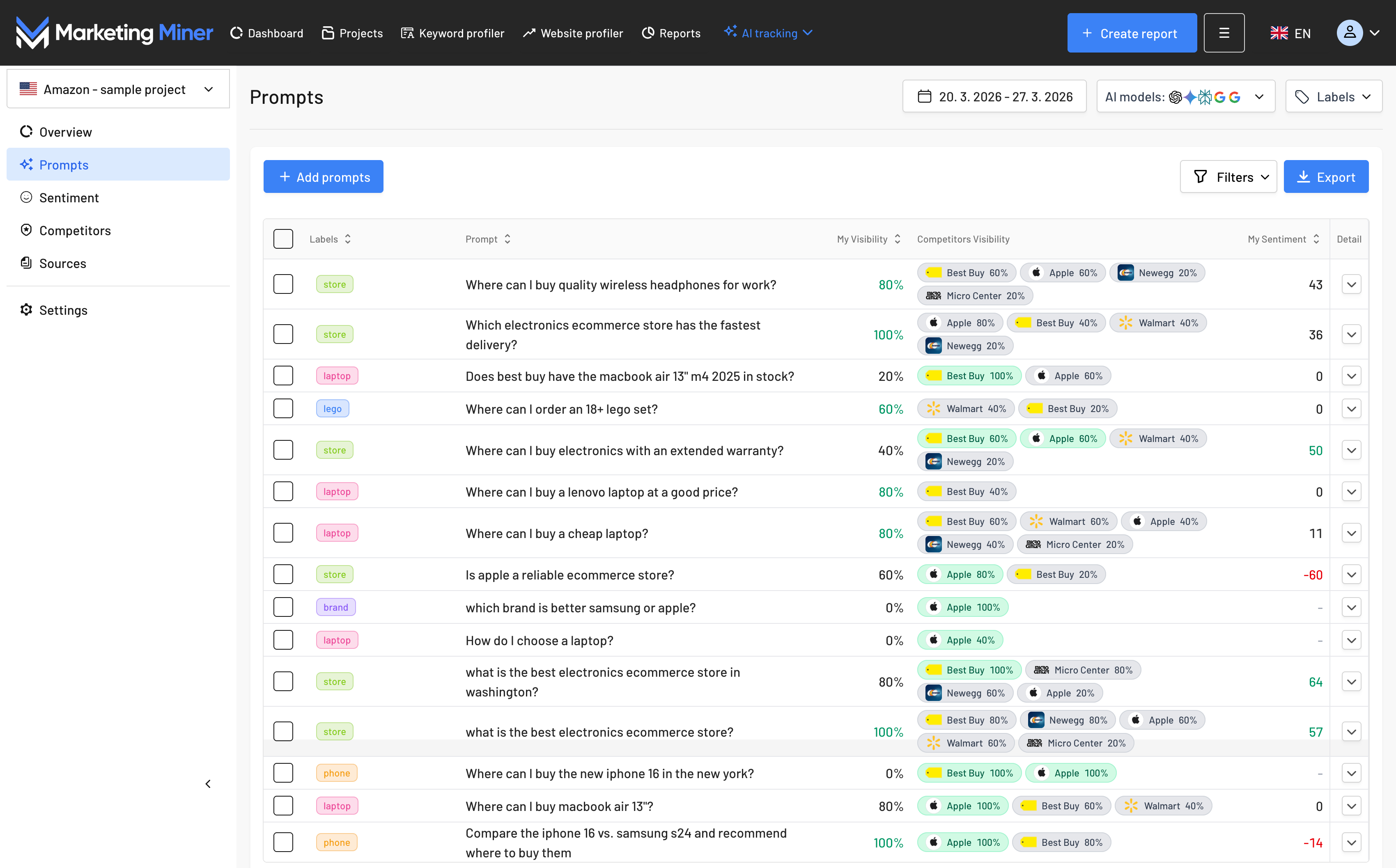
While the Overview shows general trends, the Prompts section allows you to dive deep into individual queries.
What’s inside:
- Prompt Text and Labels - a complete list of tracked queries and their assigned categories.
- Your Visibility - a percentage showing your brand’s success for a specific prompt.
- The Winner - the brand with the highest visibility for a given query is highlighted in green for quick reference.
- Sentiment - the specific score for your brand within that individual query.
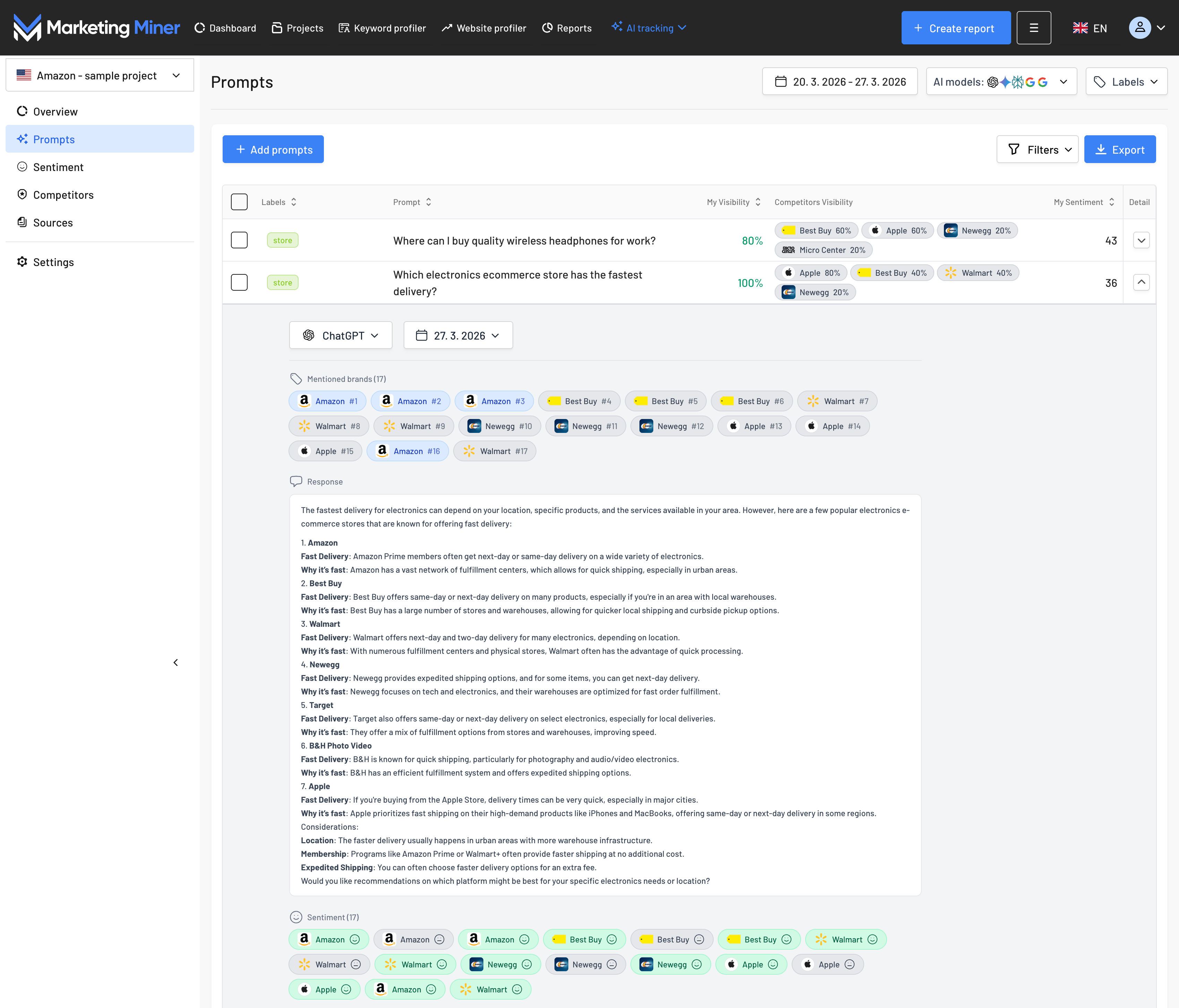
By clicking the arrow on the right, you can access the Prompt Detail:
- Specific Responses - the exact wording of what the AI models wrote.
- Competitor Analysis - an overview of all mentioned brands and their positions. Your brand is highlighted in blue for easy identification.
- Sources (Citations) - a list of websites and links the AI model used to generate the answer.
- Sentiment Emoticons - quick visual symbols showing whether the AI presents you in a positive, neutral, or negative light.
As you’re used to in Marketing Miner, all data in this section can be further filtered or bulk-exported.
Section 3: Sentiment
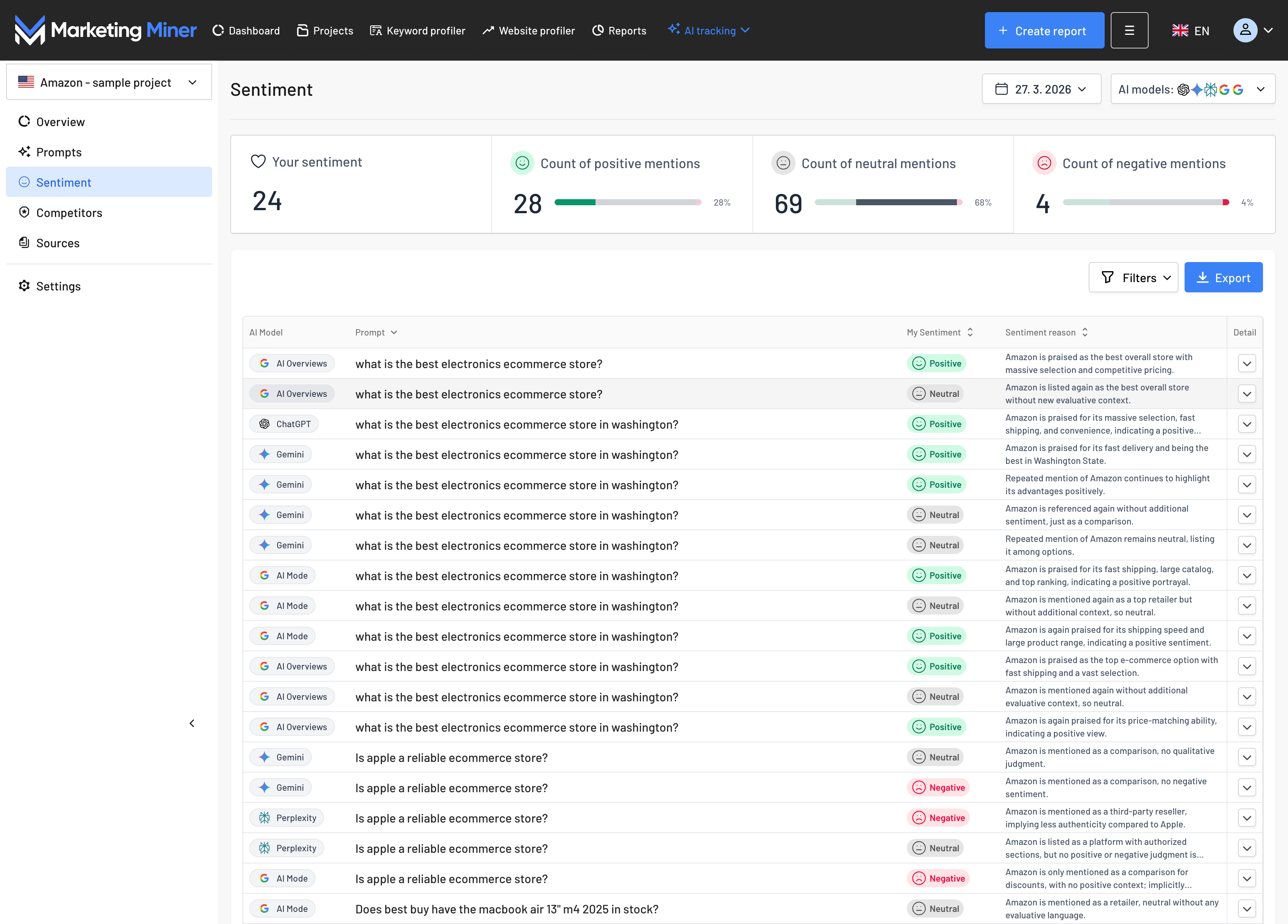
While the Prompts section focuses on visibility, Sentiment provides a deep dive into the reputation your brand is building with AI assistants. You can easily see the context in which AI recommends you and which benefits of your services it highlights most. It also helps you detect any negative context early and identify the information AI used for its evaluation.
What’s inside:
- Aggregated Score - your overall sentiment rating (-100 to 100) and a breakdown of mentions into positive, neutral, and negative (including percentages).
- Prompt Overview - a list of all queries where your brand was mentioned, including the specific AI model used.
- Sentiment Indicator - color-coded emoticons for a quick overview of the tone of each response.
- Sentiment Reason - the most critical part of this section. This is a verbal explanation of why the AI model assigned that specific sentiment (e.g., whether it praises your delivery speed or merely lists you as a neutral example of a shop).
Expanding the detail for individual prompts reveals:
- Brands mentioned by the AI assistant in that response.
- The full text of the AI response.
- The sources the AI assistant used for its answer.
- The sentiment scores of all mentioned brands.
Just like in other parts of the tool, you can filter data by date range or specific models and export the full report with a single click.
Section 4: Competition
This section provides a direct comparison of all tracked brands.
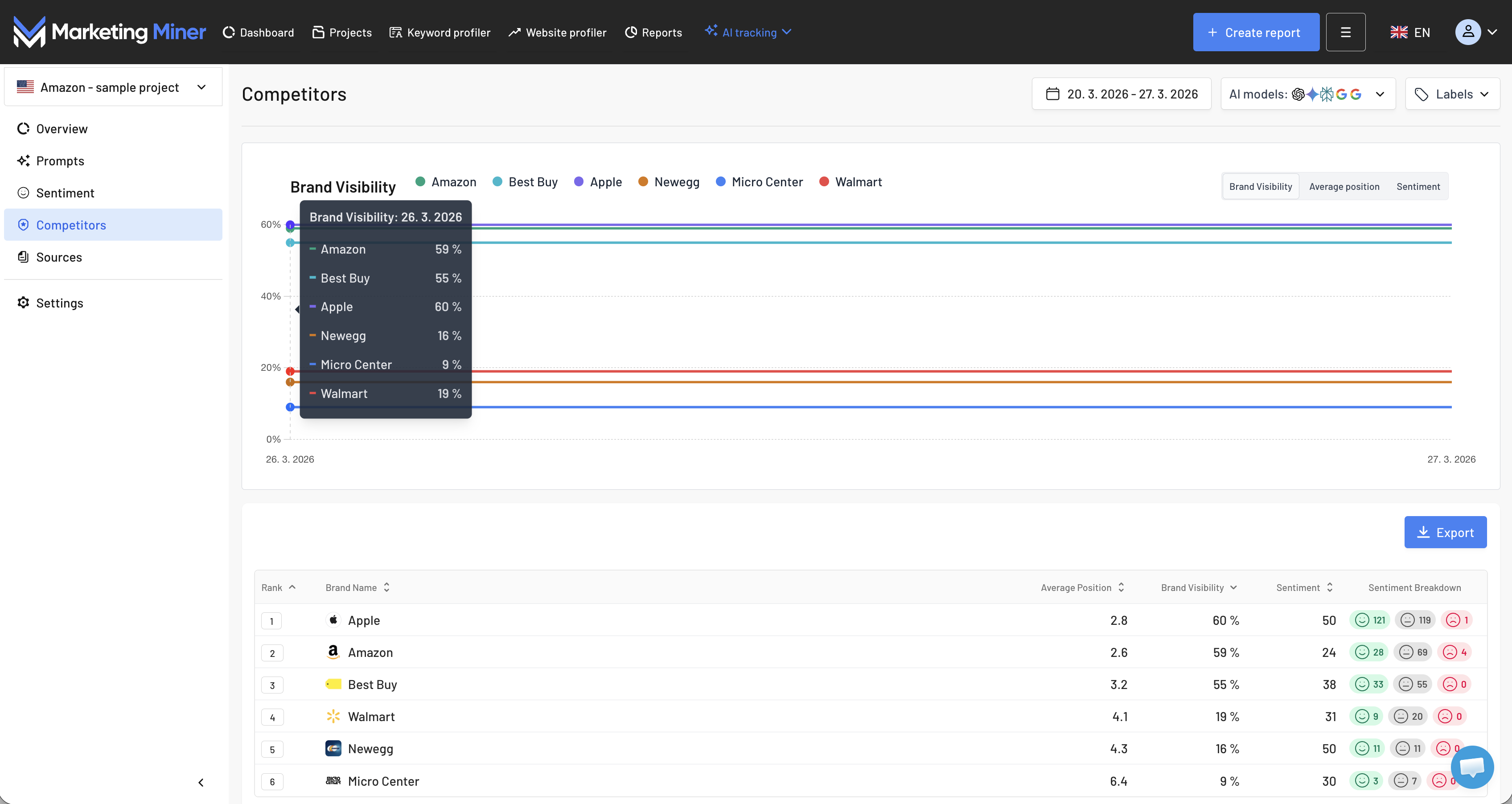
In the comparison charts, you will find:
- Visibility Trends - how visibility changes over time for you and your competitors.
- Average Position Trends - a look at who is successfully maintaining the highest spots.
- Sentiment Trends - a comparison of brand sentiment scores (-100 to 100).
The Brand Rankings table displays:
- A list of all competitors ranked by overall visibility, helping you identify your biggest rivals in AI results.
- Average Position, Visibility (%), Sentiment Score, and Sentiment Distribution (via emoticons).
Section 5: Sources
Discover where AI models are getting their information. You can toggle between entire domains or specific URLs.
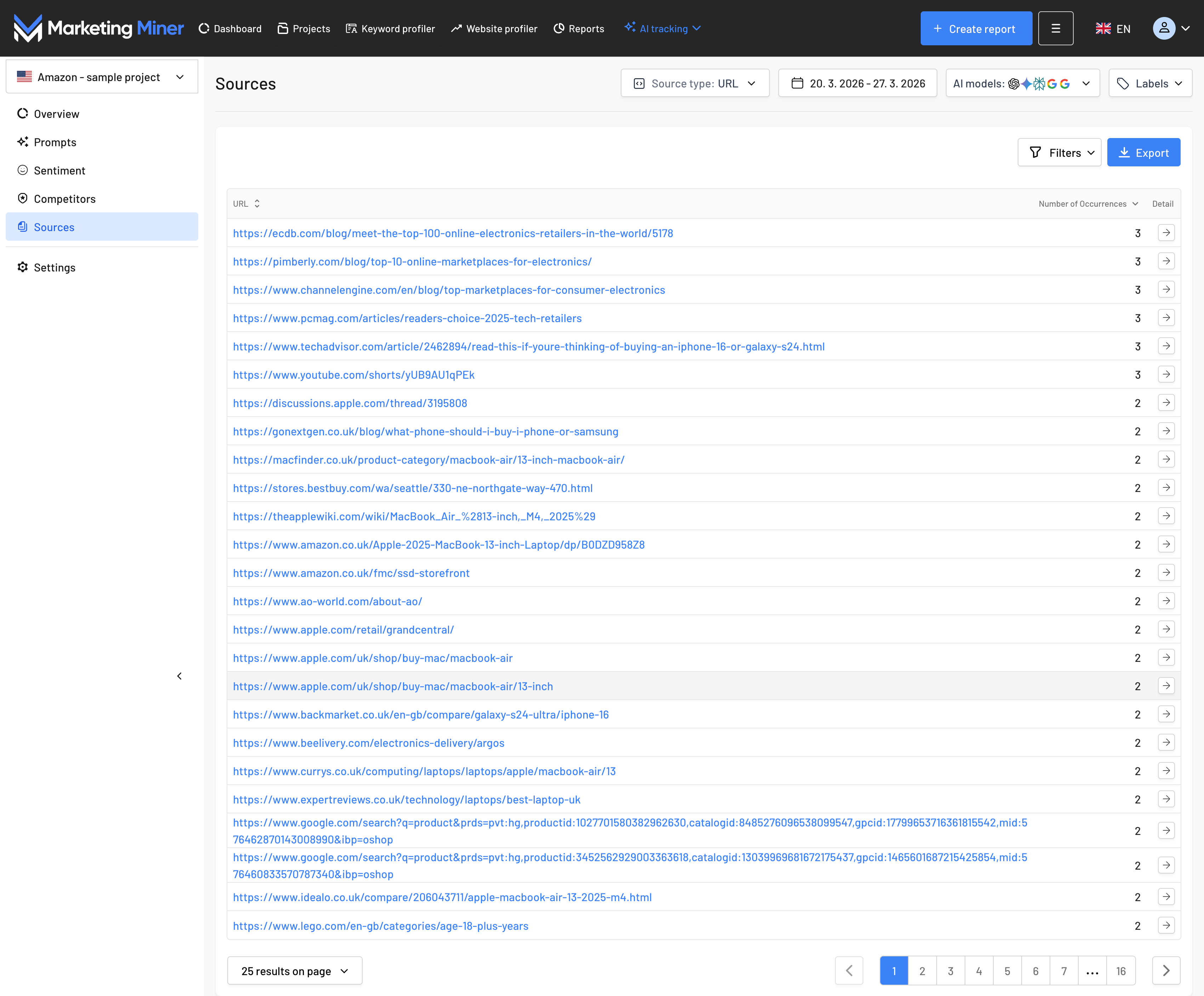
In the Sources Overview:
- Occurrences - how often a specific page or domain was used as a source.
- Source Detail - see exactly which prompts and AI models cited that specific URL.
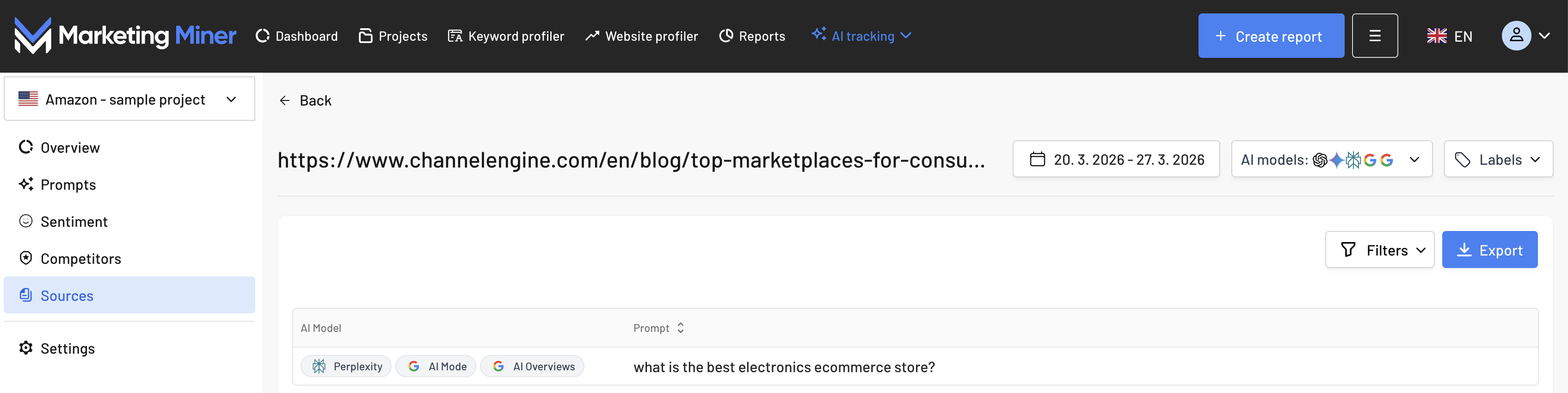
Marketing Miner TIP: Sort the URL list by the highest number of occurrences. This reveals the most authoritative pages in your industry that AI models consider essential. These sites are primary targets for link building - securing a mention there significantly increases the chance of being recommended by AI.
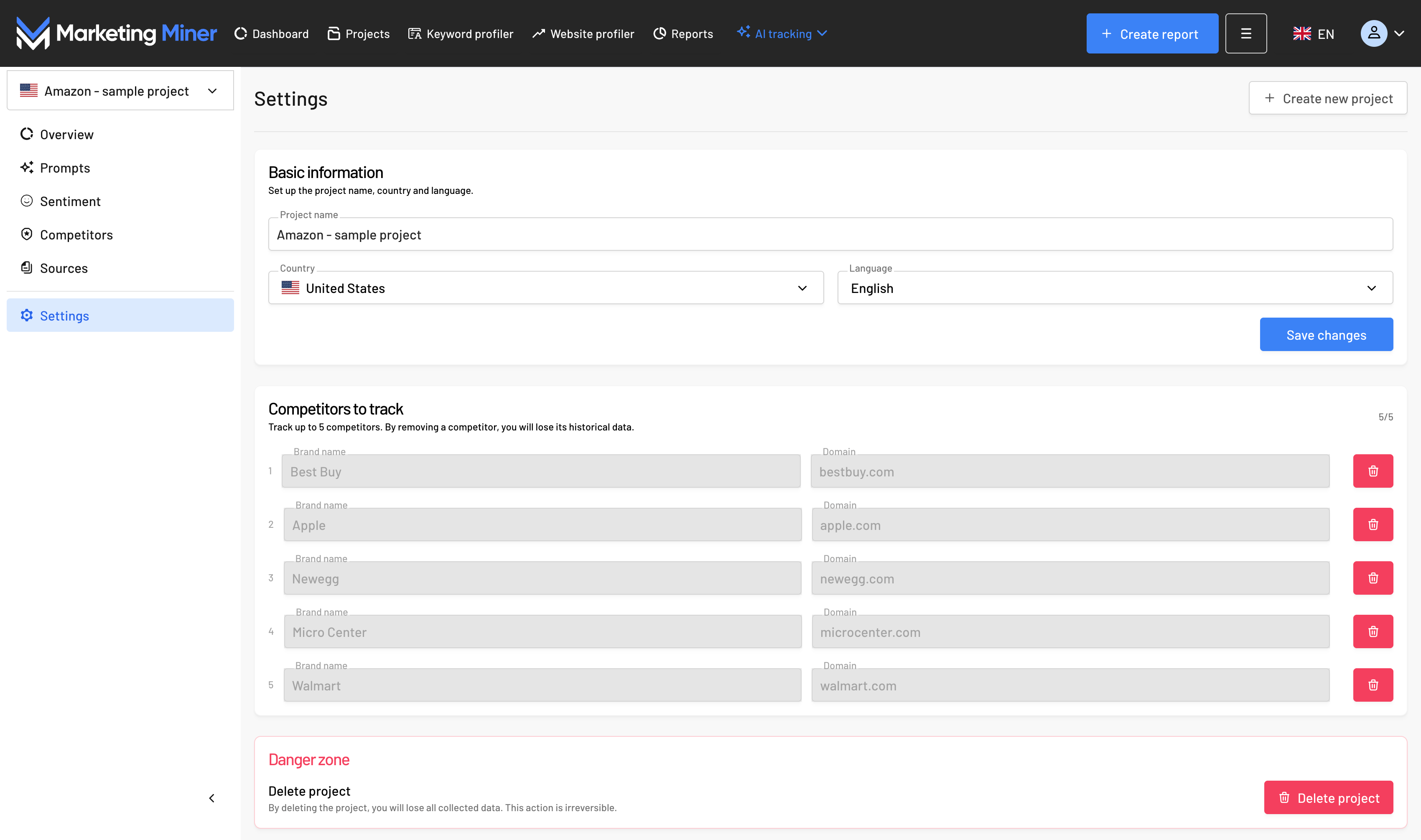
Section 6: Settings
We have added a Settings section where you can manage:
- Project Name for your regular AI tracking.
- Country
- Language - this refers to the language in which the "Sentiment Reason" will be displayed in the Sentiment section.
- Competitors - add, remove, or replace tracked competitors.
- Project Management - the ability to delete the entire project.
How to Create a Project
Setting up regular AI Visibility tracking takes just a few simple steps.
Step 1: Project Setup
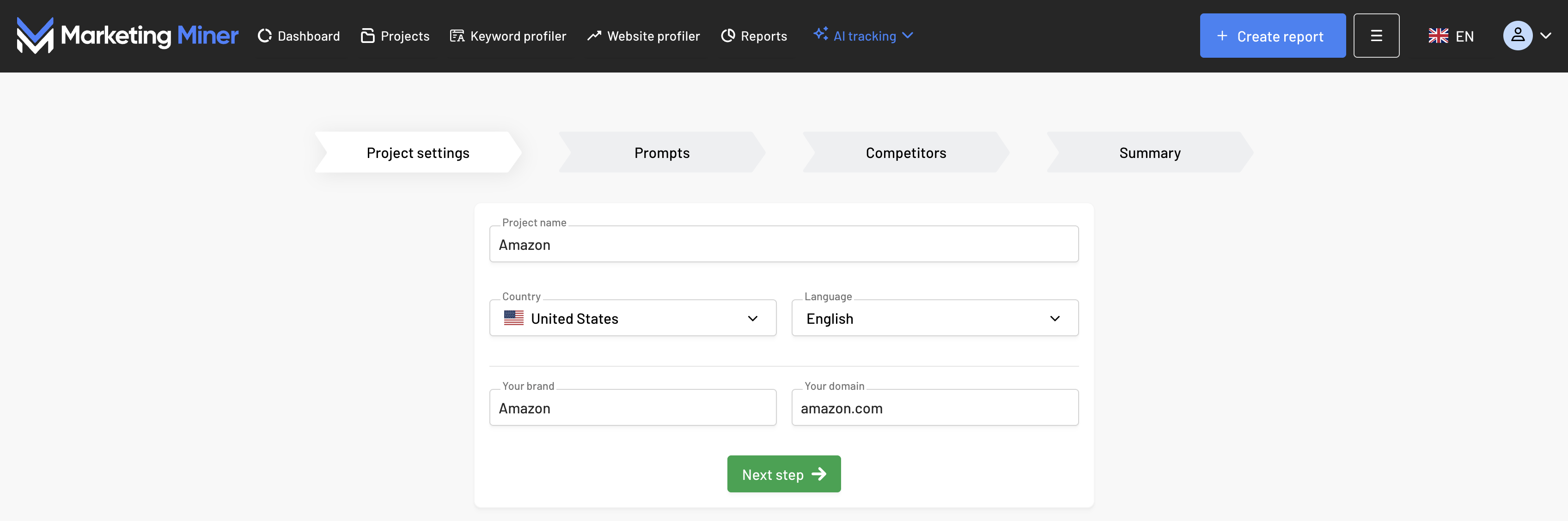
Click on the "AI Tracking" button and fill in:
- Project Name (for your internal reference).
- Country (your target market).
- Your Brand and Domain (used to identify your presence in responses).
Step 2: Prompts
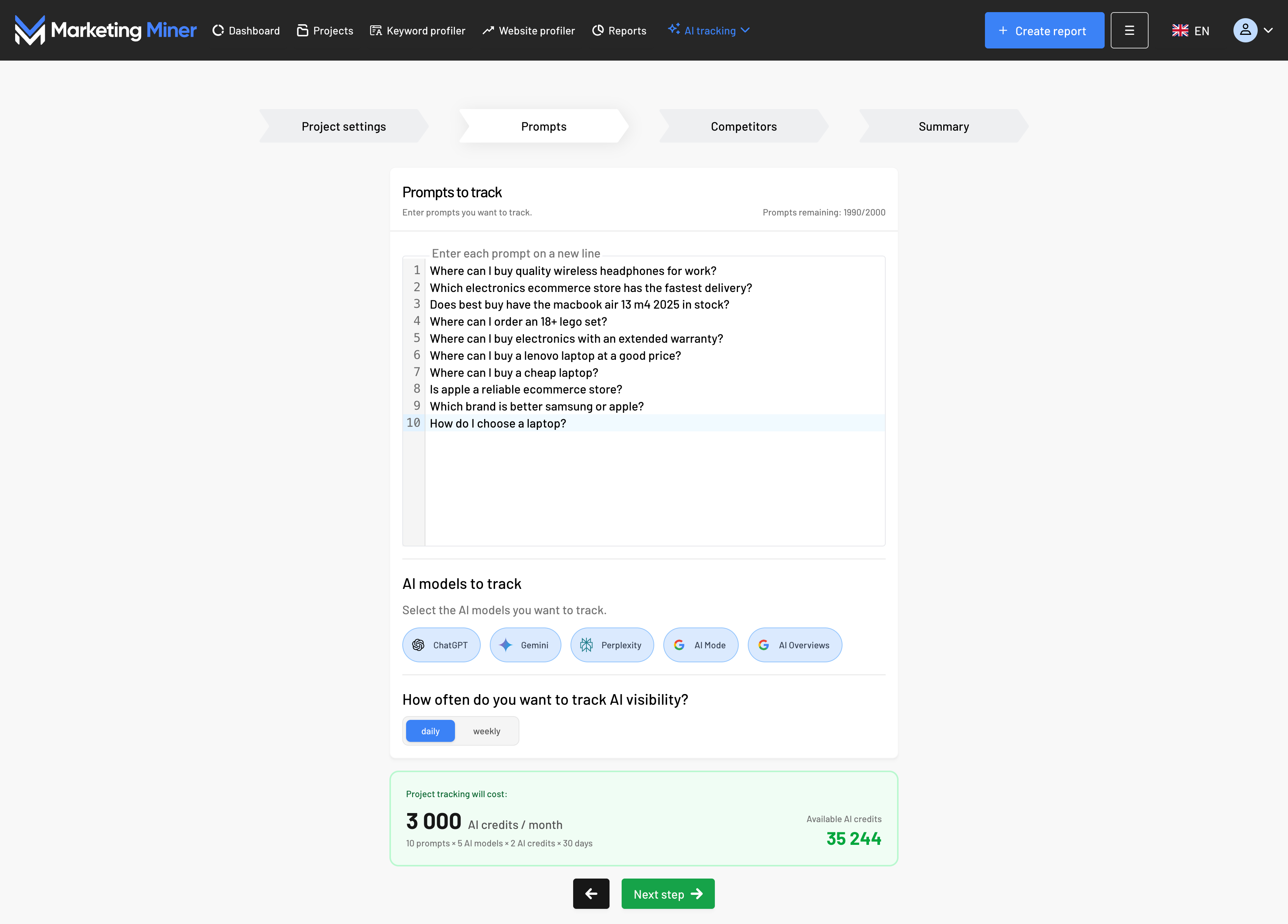
Specify what and where you want to track here:
- Input Prompts - the list of queries you want to monitor.
- Model Selection - choose specific AI assistants (ChatGPT, Gemini, etc.).
- Tracking Frequency - select daily or weekly reporting. The system will instantly calculate the AI credit consumption.
The system will automatically calculate the AI credit cost for your selection and compare it to your current balance.
Step 3: Competitors
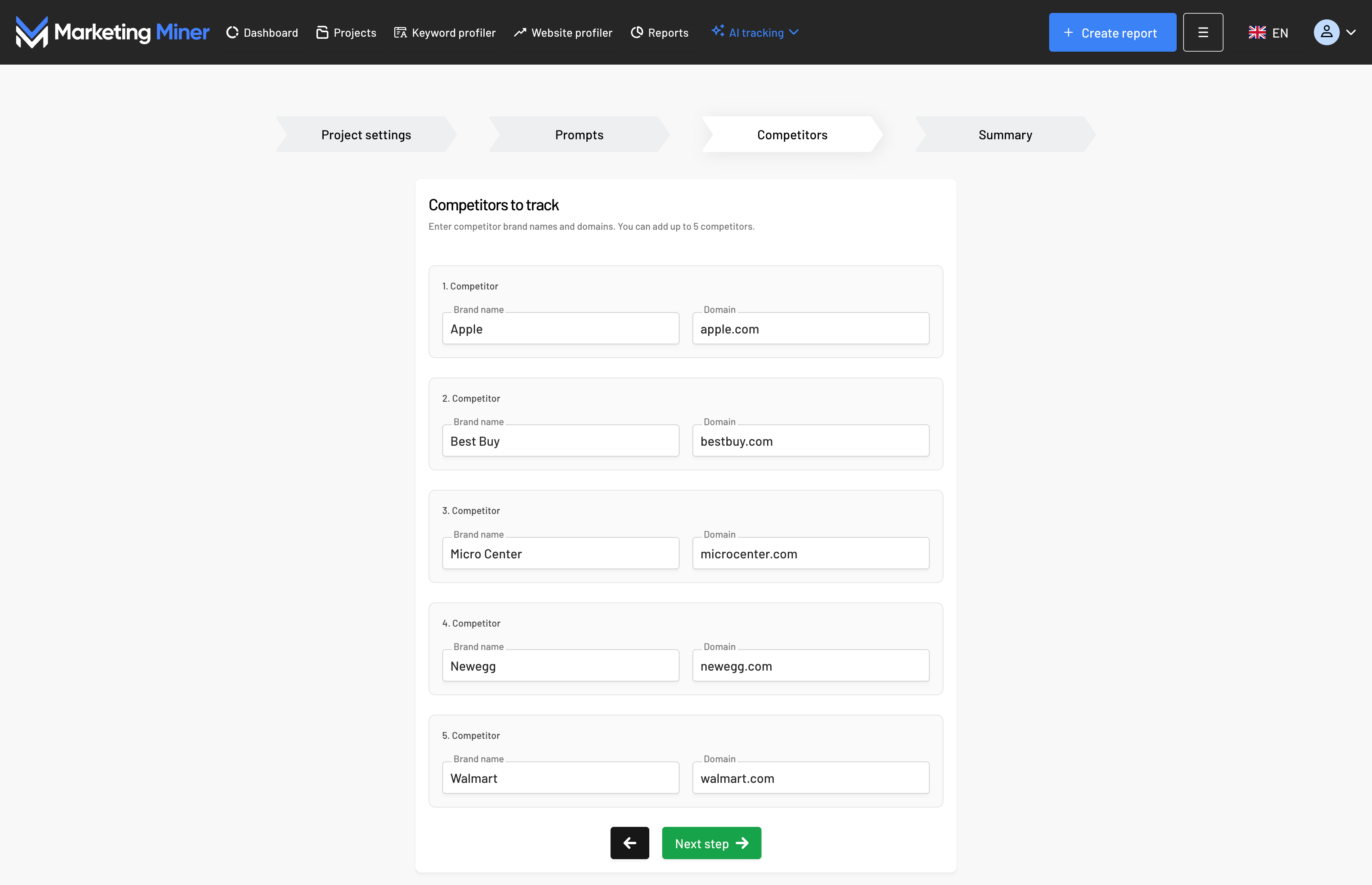
Add up to 5 competitors by providing their brand name and domain.
Step 4: Summary
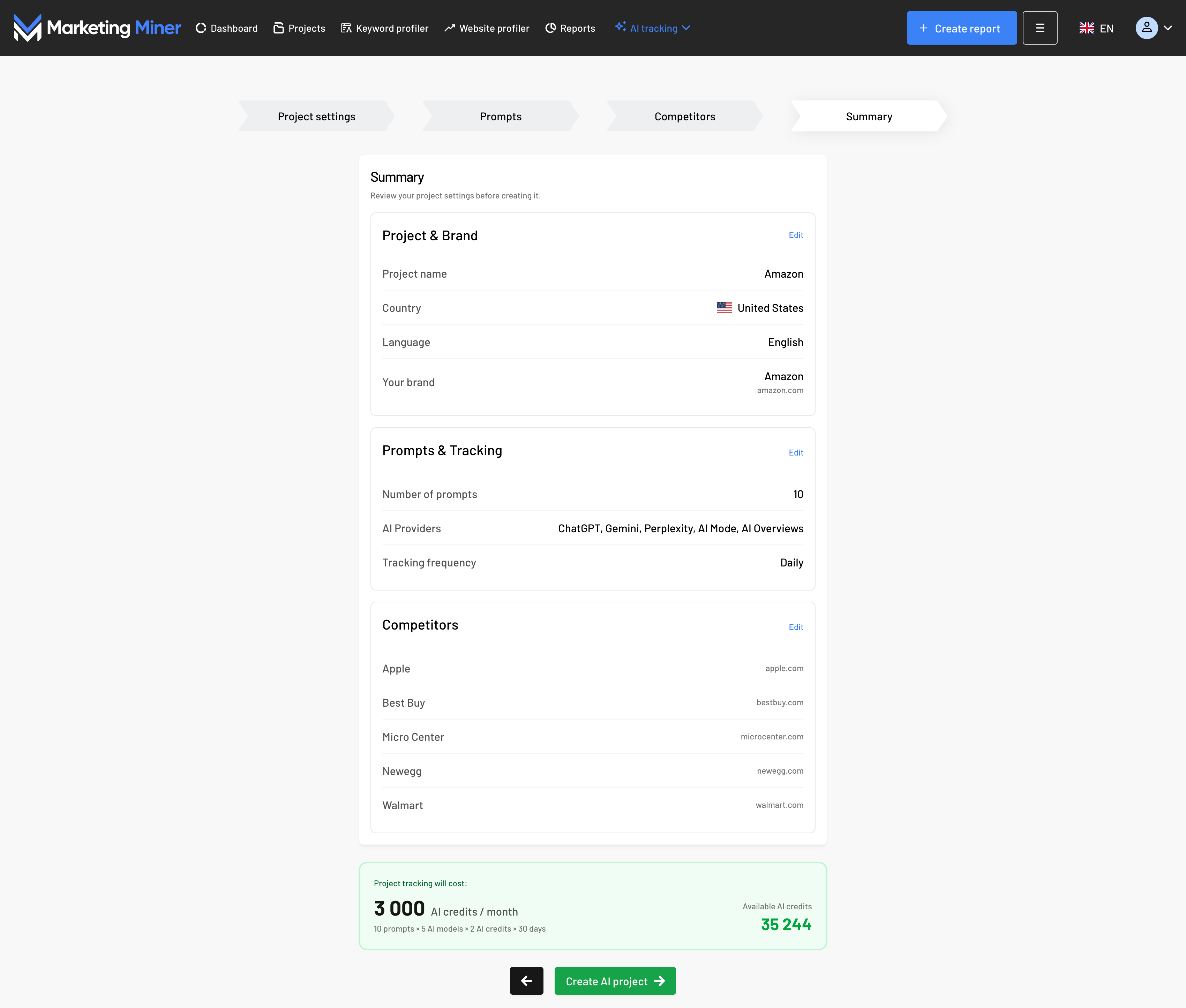
Review your settings and click "Create AI Project." Marketing Miner will now begin collecting your AI visibility data regularly.